Bitmap An image created by colored dots on a grid Resample Adjust the number of pixels in the image Kerning Space between pairs of letters Leading. Learn step-by-step how to easily turn any photo into a pattern of solid-colored dots with Photoshop. To create the color dots effect, we’ll first turn the image into color squares using Photoshop’s Mosaic filter.

Download Dots Square Grid Clip Art At Clker 10 By 10 Dot Grid

dotted grid on white background. seamless pattern with dots. dot grid

Black Grid Dots Pattern Abstract Background Vector Illustration

Dots grid design Transparent PNG & SVG vector file

Dots Formation Stock Illustrations 834 Dots Formation Stock

Premium Photo A colorful picture of a building with many different
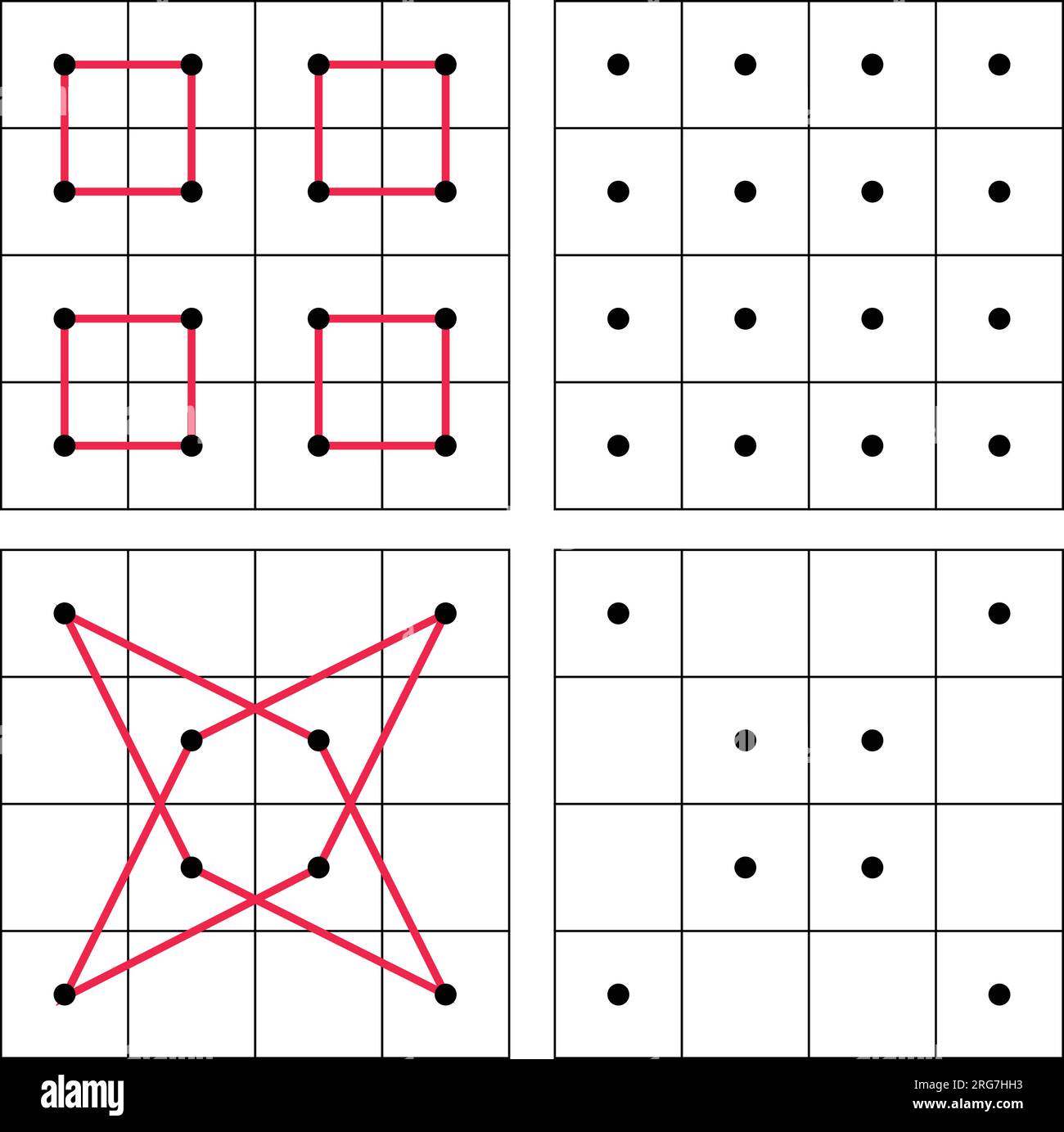
Dots grid Draw a line for each of these shapes of the dotted line

Dots grid Reflective symmetry each of this shapes of the dotted line

Line Of Colored Dots Google Slide Theme And Powerpoint Template Slidedocs

Premium Vector Dot pattern background Black dots grid White simple

Network diagram with colored dots transparent background 53571197 PNG

White Dots Grid Over 315,394 RoyaltyFree Licensable Stock

Dots Grid Draw Isometric Cube Each of these Shapes of the Dotted Line
A Raised Grid of Glowing Dots Representing Connections, Cloud

Premium Vector Set of graph paper Lines and dots dotted grid paper

Abstract Blue Background with Interweaving of Colored Dots and Lines

Premium AI Image A painting of a bunch of different colored dots on a

Premium Vector Four different colored dots are drawn on a white

dotted grid on white background. seamless pattern with dots. dot grid

Digital halftone dots grid moving up, concept for digital technology
Convert an image stored by a geometric formula to pixels. An image created by colored dots on a grid. An image created by defining points and curves. Adjust the number of pixels in the image.. How To Create A Colored Dot Pattern From A Photo Step 1: Duplicate The Background Layer With the photo newly opened in Photoshop, if we look in the Layers panel, we see that we currently have one layer – the Background layer – which is the layer our image is sitting on: The original image sits on the Background layer in the Layers panel.